The Ultimate Guide to SEO in Hugo - Free Tools and Tips to Improve your Performance
Introduction
One day, seemingly out of nowhere, my Google search impressions dropped from 400 per day to just 4. I hadn’t made any changes that would explain such a drastic drop. While I’m still unsure if SEO was entirely to blame, I took this as a sign that it was time to dig deeper and optimize Hugo for search engines.
In this guide, I’ll share three open-source tools I created to improve SEO in Hugo, configuration and template tweaks that have made a difference, and third-party free and freemium tools that help refine performance. If you want to make Hugo shine in search results, this post is your hub for getting started.
Quick Links to SEO Tools & Fixes
| Topic | Summary |
|---|---|
| Google Search Console | Monitor your site’s SEO health, track indexing, and troubleshoot issues. |
| Hugo Broken Link & Image Checker | A GitHub Actions script to detect and fix broken links and images in Hugo Markdown files. |
| Hugo SEO Linter | Ensures proper title lengths, meta descriptions, and content structure for SEO. |
| Hugo Image Optimization | Automatically converts and resizes images to WebP for faster loading times. |
| Recover WordPress from Wayback | Guide to extracting old WordPress content and converting it to Markdown for Hugo. |
| MarkdownLint for Hugo | Flags HTML in posts, enforces proper formatting, and helps clean up legacy content. |
| Fixing Taxonomy Page Indexing | Prevents thin-content taxonomy pages from being indexed to improve SEO. |
Google Search Console: Your SEO Dashboard
Before diving into tools and fixes, we need to talk about Google Search Console (GSC). GSC is essential for monitoring and managing your site’s SEO health. It provides insights into your search performance, indexing status, and potential issues like broken links or mobile usability problems.
However, GSC doesn’t always tell you exactly why your rankings have changed. That’s where third-party tools come in handy.
SEO Tools for Hugo
Third-Party SEO Analysis Tools
In my WordPress days, I relied heavily on Yoast to handle SEO optimizations. With Hugo, we need a more hands-on approach, but that’s part of the fun, right?
Here are some SEO tools I’ve tried:
- SEObility (my current favorite): Free tier allows 1 scans per 3 day, which is enough for an evening hobbyist. It checks for broken links, metadata issues, and more.
- SEMRush, RankRival, Ahrefs: All solid tools, though they often lean towards paid plans for deeper insights.
- Screaming Frog: Great for detailed analysis but not mobile-friendly.
SEObility pointed out a few major issues on my site, which led me to create my own Hugo-specific tools to automate fixes and ongoing monitoring.
Hugo SEO Fixes and Custom Tools
1. Domain Canonicalization Fix
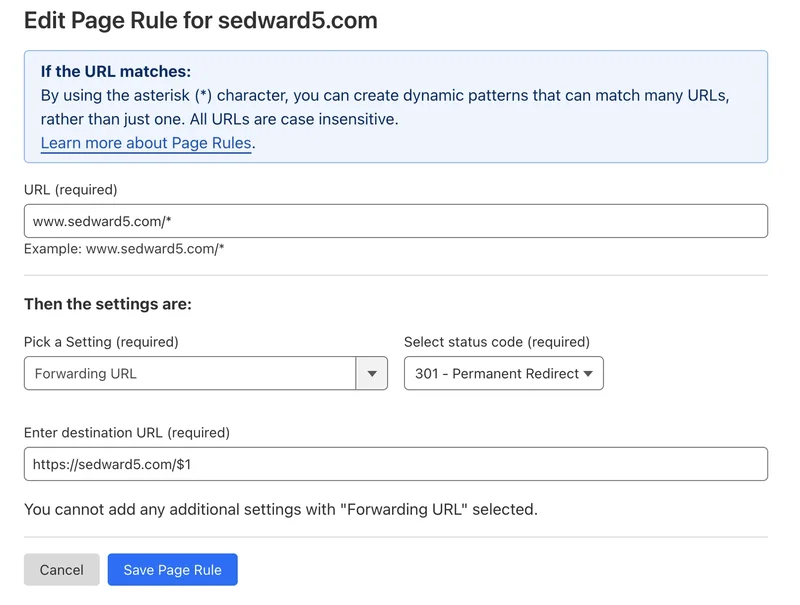
My site was accessible at both cybermixology.com and www.cybermixology.com. Best practice dictates choosing one version and redirecting the other. A quick 301 redirect in Cloudflare solved this:
- Go to Cloudflare Dashboard → Page Rules.
- Create a rule to redirect all
www.traffic to the base domain.
2. Fixing 301 Redirects on Tag Pages
SEObility flagged that my tag links (/tags/tag-name) were hitting 301 redirects to /tags/tag-name/. The fix? Updating my template files to include the trailing slash in tag links.
3. Detecting Broken Links and Images
SEObility found several broken links and images. Some were easy to fix manually, but my homepage and list pages were embedding broken image paths due to how Hugo generates summaries.
Solution: Hugo Broken Image & Link Checker
I built a GitHub Actions script to:
- Parse all Markdown files in
/contentfor broken Markdown links and images. - Validate
featured_imageandrecipe.imagefields in front matter. - Ensure shortcodes exist in the layout directory to prevent Hugo build errors.
4. Enforcing SEO Standards
SEO best practices require proper title lengths, meta descriptions, and structured content. Instead of checking manually, I automated this.
Solution: Hugo SEO Linter
This script:
- Validates title (50–60 characters) and description (120–158 characters) length in front matter.
- Ensures no
H1tags exist in Markdown (since my template includes anH1). - Checks for at least 500 words per post.
- Runs as a GitHub Action on modified files to prevent regressions.
5. Optimizing Images for Faster Page Loads
Page speed is crucial for SEO. I usually upload images as PNG or JPEG, but manually converting them to WebP is tedious. Instead, I automated it.
Solution: Hugo Image Optimization GitHub Action
This action:
- Resizes featured images to 1920px width.
- Resizes inline images to 800px width.
- Converts everything to WebP.
- Updates Markdown files to reference the optimized images.
Hugo could handle WebP generation at build time, but resizing everything once is more efficient.
6. Converting Legacy WordPress Posts to Markdown
My blog originally came from a WordPress recovery via the Wayback Machine. Many old posts still contain raw HTML in the body, which prevents my linter and optimizers from working.
Solution: MarkdownLint for Hugo
I added MarkdownLint to:
- Flag posts with HTML instead of Markdown.
- Catch formatting issues (e.g., missing alt text for images).
- Help me systematically fix old content.
Below is my .markdownlint.json
{
  "default": true,
  "single-title": false,
  "no-bare-urls": true,
  "no-inline-html": true,
  "blanks-around-headings": {
    "lines_above": 1,
    "lines_below": 1
  },
  "blanks-around-lists": true,
  "line-length": false
}
7. Fixing Thin Content on Taxonomy Pages
By default, my theme set taxonomy pages to index, follow, meaning search engines would index them—even though they contain little unique content.
Fix:
I updated my baseof.html template to:
{{ $noindex := or (eq .Kind "taxonomy") (eq .Kind "term") (eq .Kind "section") }}
{{ if and $production $public (not $noindex) }}
  <meta name="robots" content="index, follow">
{{ else if $noindex }}
  <meta name="robots" content="noindex, follow">
{{ else }}
  <meta name="robots" content="noindex, nofollow">
{{ end }}
This prevents taxonomy pages from hurting my site’s SEO while allowing internal links to be crawled.
8. Replacing Generic “Read More” Links
SEO tools hate generic anchor text like “Read More.” Instead of creating custom buttons for every post, I just updated the theme’s i18n (localization) file to use:
readMore: "See the Full Story"
This small tweak improves link relevance without overcomplicating things.
Final Thoughts
SEO in Hugo takes more manual effort compared to WordPress, but the flexibility is worth it. With the right tools and configurations, you can:
✅ Fix broken links and images automatically
✅ Enforce SEO-friendly metadata and content lengths
✅ Optimize images for faster loading times
✅ Improve internal linking structure
I’ll keep updating this guide as I refine my tools and strategies. If you have any Hugo SEO tips, feel free to share!